Keyboard Setup › Korg
Korg Pa Series
Pa5X, Pa4X, Pa1000, Pa900, Pa800, Pa700, Pa600, Pa600QT, Pa500, Pa300, Pa2X Pro, Pa1X
The app sends the scale and transpose to the Pa as System Exclusive (SysEx) messages.
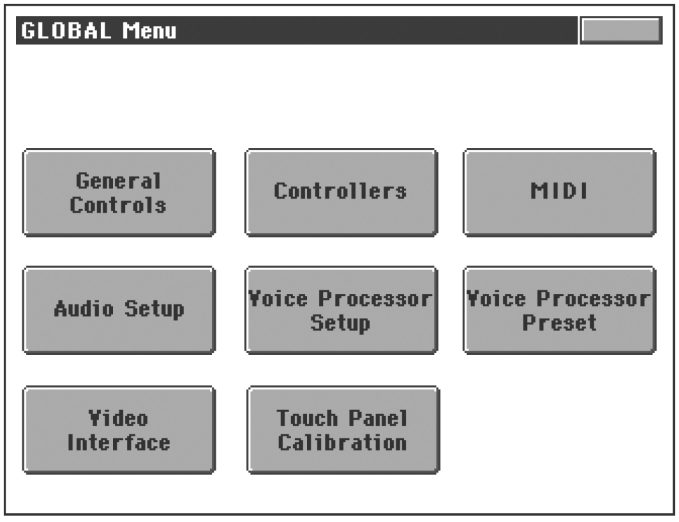
- 1Open the Global MIDI page
Press MENU to open the Global menu, then touch MIDI.
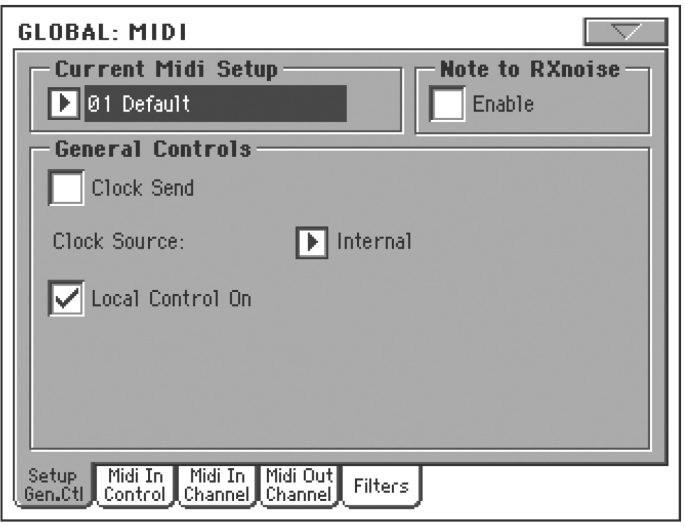
- 2Open the Filters tab
In Global: MIDI, touch the Filters tab.
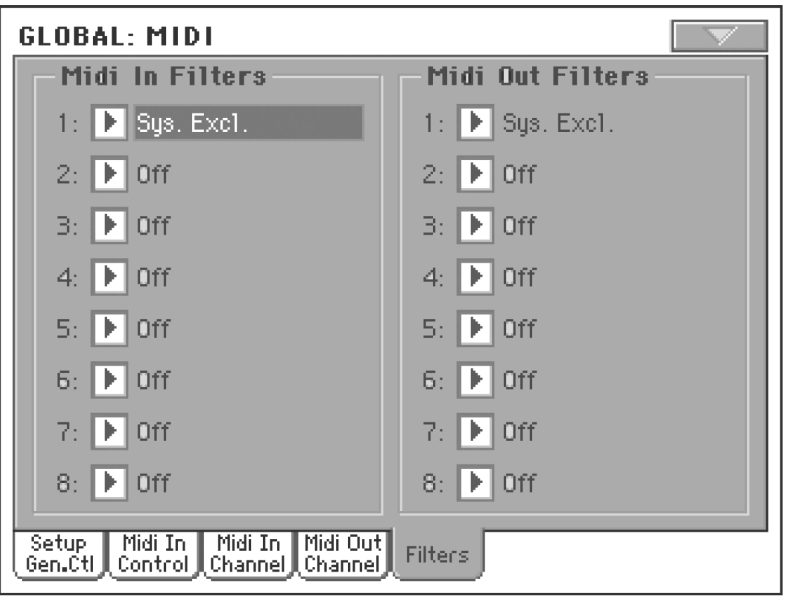
- 3Turn the SysEx input filter off
Under Midi In Filters, the first slot is set to Sys. Excl. by default, which blocks the app. Change it to Off.
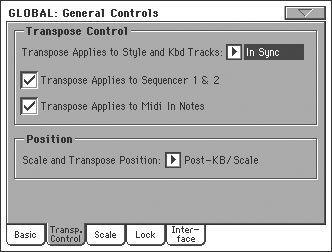
- 4Open General Controls
Press MENU again and select General Controls, then the Transp. Control tab.
- 5Open the Lock tab
Select the Lock tab, then Tuning. Unlock Master Transpose so the app can transpose the keyboard. Lock Perf. M. Transpose, Style Perf. M. Transpose, Subscale/Quarter Tone, STS Subscale/Quarter Tone and Auto Octave, so changing a Style or Performance doesn't reset your scale.
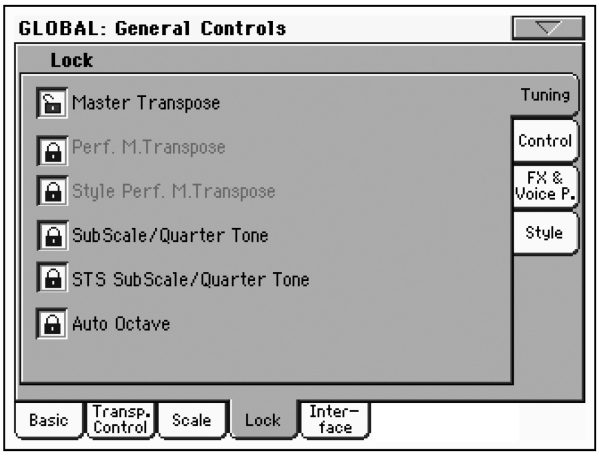
- 6Write your settings
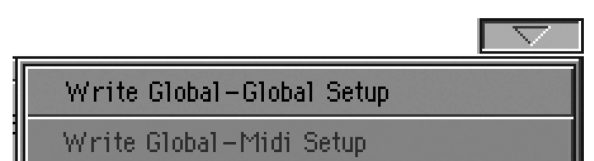
Open the page menu (top-right arrow) and choose Write Global – Global Setup, then Write Global – Midi Setup.
Notes
- Choose "Korg Pa Series" in the app's keyboard list for this setup.
- Juzisound 2 and Juzisound Total SOLO Sampler use the same Pa protocol.
Need help? Contact us.